
How to Search and Filter with TendersGo AI Assistant
A Global Intelligence Engine for Tenders, Procurement, and Market Opportunities
Never Miss a Tender Again Advanced AI Assistant Search & Filters for Professionals
At TendersGo, we help you find the right tenders faster and with precision. In this guide, you will learn step by step how to use the TendersGo AI Assistant to build advanced searches, apply smart filters, and quickly pinpoint the opportunities that matter to you.
With intelligent filters, advanced search options, and a user-friendly interface, the TendersGo AI Assistant helps you refine thousands of results and identify the tenders that match your needs. In this guide, you will learn how to use these tools step by step to access relevant opportunities with greater speed, accuracy, and control.
How to Enter Keywords for AI-Powered Advanced Filtering
Access the TendersGo AI Assistant to search tenders using natural language instead of manual filters.
Start an AI-powered search directly from the homepage without configuring manual filters.

.
If you want to open the AI Assistant search page from the menu, click the "More" button and then click the "AI Search" option in the window that opens. This option will take you to the general TendersGo AI Assistant search page.
○ Intent-Based Search
Describe what you need in plain English. The AI Assistant understands your intent and turns it into the right search logic (keywords, synonyms, and context) to find relevant tenders faster.
○ Smart Keyword Groups
Enter your key terms as groups (for example: service + industry + location). The AI Assistant combines these groups intelligently to narrow results without missing high-value opportunities.
○ Precision Mode
Use this when you need strict results. The AI Assistant focuses on exact terms, specific phrases, and required conditions so you get fewer but highly targeted tenders.
TendersGo is a global tender search engine designed to give you consistent access to opportunities from every country and in every language. Each tender notice is available in its original language as published, along with a standardized English version. You can search in English or use the original language of the notice, depending on your preference and search strategy.
TendersGo is built to operate at a scale that no other tender platform currently matches. What makes it the largest global tender search engine is not a slogan, but the depth, frequency, and transparency of its data operations. Every day, TendersGo collects, processes, and classifies procurement data from hundreds of thousands of sources worldwide, ranging from the smallest local municipalities to national authorities, federal agencies, public institutions, and international organizations.
All collected tenders are systematically classified using globally recognized standards, including NAICS, UNSPSC, CPV, and 77 dedicated industry sectors. This structured approach allows professionals to search, filter, and analyze opportunities with a level of precision that manual systems and fragmented portals simply cannot offer.
.
.
TendersGo AI Assistant Advanced Search & Filtering Guide
Choose the AI Assistant search mode/version to run your query with the selected configuration.
Type your requirements in natural language (keywords, country, sector, buyer) and let the AI build the filters for you.

💡 Sample Information Note
This screen displays the TendersGo AI Assistant search interface, designed to let users find public procurement opportunities by simply describing what they are looking for in a single input field. Instead of manually selecting filters such as region, country, organization, or sector, users enter their search criteria in natural language, and the AI Assistant handles the rest.
For example, a user may enter the following prompt into the AI Assistant.
"Find public tenders in Europe for supply, installation, and maintenance of diesel generators, including backup power systems and related electrical equipment."
When this prompt is submitted, the TendersGo AI Assistant analyzes the intent of the request. It automatically generates relevant search keywords, identifies the appropriate region, and applies the necessary filtering parameters behind the scenes. There is no need for the user to manually select Europe, choose countries, or define organizations before running the search. The AI Assistant builds and executes the query on the user’s behalf and returns matching tender results.
Once the results are displayed, users can review the listings and, if needed, apply additional refinements using the Advanced Filtering menu. This allows for more detailed manual filtering based on the returned data, without repeating the initial search setup.
This approach combines speed and precision by removing manual configuration at the start, while still giving professionals full control to fine-tune results after the search is completed.
.
How to Search by Country and Keyword with the TendersGo AI Assistant
Write your search criteria in natural language. The AI Assistant extracts key parameters (keyword/topic, country/region, sectors) and runs the search without you manually selecting filters first.

💡 Sample Information Note
In the sample shown in the image, the user enters a natural language request into the TendersGo AI Assistant to search for tenders related to a specific product or sector in a specific country. Instead of manually selecting filters such as country, language, or keyword options, the user simply describes the requirement in one sentence. Based on the entered text, the AI Assistant identifies the relevant topic, determines the target country, and applies the appropriate search and filtering parameters automatically. The search is performed using a broad interpretation of the keywords and context provided, allowing the system to capture relevant tenders even if different wording is used in the notices. This approach is useful when users want to quickly discover opportunities without configuring multiple filters in advance. After the results are displayed, users can further narrow down the list using the Advanced Filtering options if more precision is required.
Standard search, advanced filtering, and tender detail views on TendersGo are available without limits, allowing users to run as many manual searches and apply as many filters as needed.
AI Assistant–powered searches and filtering are available as part of the TendersGo Premium package and include a monthly allowance of 350 AI queries. This limit is designed to support intensive professional use and is sufficient for conducting advanced, intent-based searches and refining procurement strategies throughout the month.
This structure ensures that users have unrestricted access to the core search and filtering features, while also benefiting from AI-powered search capabilities that automate and accelerate complex query creation. By combining unlimited manual tools with a generous AI usage limit, TendersGo provides both flexibility and efficiency for companies of all sizes.
.
AI-Generated Results and Next Actions
This is where the user enters a natural language request. The AI Assistant interprets the input and generates the search parameters automatically.
Displays the filters generated by the AI Assistant based on the original prompt. These filters can be reviewed or adjusted manually.
The keywords shown in the Active Filters area are automatically generated by the AI Assistant based on your search request. These terms expand the search to include relevant variations and related concepts, helping capture matching tenders without requiring manual keyword entry.

Shows the country detected and applied by the AI Assistant as part of the search parameters.
Allows users to create an alert based on the current filters so new matching tenders are delivered automatically.
💡 Sample Information Note
In the sample search and filtering shown in the image, the AI Assistant has generated a group of related keywords based on the user’s request, such as steel, metal fabrication, steel construction, structural steel, steel manufacturing, and similar terms. The Mentions method is selected, which means the system returns a combined results list including any tender where one or more of these keywords appear anywhere in the tender title or description. Because the Mentions method is broad and flexible, it helps capture all tenders related to the topic, even if different terminology is used across notices. This approach is useful for discovering a wider range of relevant opportunities. If the number of results is high, users can refine the list further using additional manual filters such as country, language, organization, sector, or other available criteria. "Multiple keyword groups can be included within the same search by separating them with commas (,), allowing more comprehensive topic coverage within a single filter setup."
."
TendersGo is the world’s largest AI-powered search engine for tenders and contract opportunities.
Since 2016, TendersGo has been continuously developed by analyzing tender and procurement portals worldwide and refining its AI-driven search and filtering capabilities. By combining artificial intelligence with structured global tender data, the platform enables faster, more accurate discovery of opportunities while offering professional-grade search and filtering tools designed for real-world procurement needs.
Refining AI-Generated Results with Manual Filters and Alerts
Displays the keyword groups automatically created by the AI Assistant, which can be reviewed or refined manually.
Active Region Filter, Indicates the region applied to the current results and allows further geographic narrowing if needed.

Countries Found in Results, Shows a breakdown of countries appearing in the current result set, enabling quick country-level refinement.
💡 Sample Information Note
In the sample search and filtering shown in the image, a group of AI-generated keywords related to steel (such as steel manufacturing, steel construction, structural steel, steel supply, and similar terms) is searched within the Europe region. The Mentions method is selected, and the English view with Include English Version option is enabled. This means the system returns a single combined results list that includes any tender where one or more of the listed keywords appears anywhere in the tender title or details, either in the original language or in the English version. Because the Mentions method is broad and flexible, it helps capture a wide range of relevant tenders even when different terminology is used. If the number of results is high, users can further refine them by applying additional manual filters such as country, sector, organization, keyword matching options, or other available criteria. When combining multiple keyword groups within the same search and filter setup, each group must be separated by a comma (,).
.
.
AI Assistant Search at Scale: The World’s Largest Tender Search Engine
TendersGo is the world’s largest tender and contract search engine. With the TendersGo AI Assistant, you describe what you need in one sentence, and the system instantly builds the search and filtering parameters to deliver relevant results faster. After the AI search, you can fine-tune results manually with advanced filters and create alerts to track new matching opportunities.
From AI Search to Precision Filtering in One Screen
Shows the natural-language request you entered. You can edit it or submit a new AI-powered search directly from here.
Save this AI-generated search and receive automatic updates when new matching tenders are published.
AI Status & Guidance Message
Confirms that results are listed and reminds you that you can immediately run a new AI search.

Results List Area, Displays tenders that match the AI-generated parameters and your manual refinements, updated instantly.
Countries Found in Results, Shows a real-time breakdown of countries detected in the current result set, helping you refine geographically.
💡 Sample Information Note
In the screen shown, the user submits a natural language request to the TendersGo AI Assistant to find steel tenders in Europe and view results in English. The AI automatically interprets the request and creates the necessary keywords, region filter, match method, and language settings without manual selection. The Active Filters panel shows how the AI structured the search, including the Europe region, multiple steel-related terms using the Mentions method, and English version filtering. Results are listed instantly, with the Countries Found in Results section displaying how many matching tenders exist per country. From this screen, users can refine results manually, launch a new AI search, or save the setup using Add Alert to receive future matches automatically. This view highlights how TendersGo’s AI turns a simple request into a complete tender search in one step.
.
Automatic Daily Alerts for Your Custom Searches
You can easily turn any set of search filters and options into a daily email alert, delivering the latest matching opportunities straight to your inbox. Unlike other platforms, TendersGo offers this service with truly unlimited access. Every email alert you create is also saved as a profile search, allowing you to open it directly from your profile page without reapplying filters each time. This dual structure makes tracking your target tenders both highly efficient and exceptionally convenient.
Filtering by Single Organizations or Organization Groups
From the dropdown list, choose the exact organization you want to follow (for example, a specific Ministry of Energy), then apply the filter.
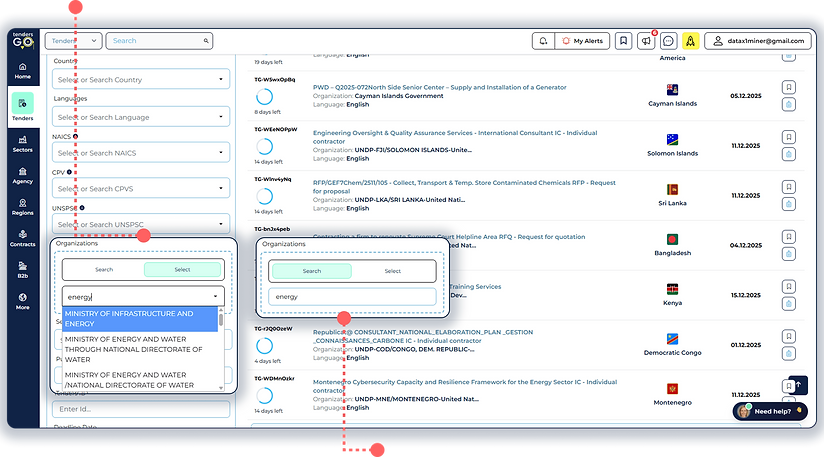
Type a keyword (e.g. energy) in the Organizations field to search among all buyer organizations that match this term.
💡 Sample Information Note
In the sample screen shown in the image, the Organizations filter is used to narrow the results to specific buyers. By typing a keyword such as “energy” in the Organizations field, TendersGo searches all buyer names and displays a list of matching institutions (for example, different Ministries of Energy and related agencies). You can then select one or more organizations from this list and apply the filter so that the results table shows only tenders published by the selected buyers, while still respecting all other filters such as country, language, NAICS, CPV, or UNSPSC.
If you keep the Organizations filter empty, the search remains general, and results will include tenders from all buyers that meet your other criteria. When you add one or more organizations, the scope becomes focused, turning the same search into a targeted view of tenders issued only by your priority institutions (e.g. all “energy” ministries worldwide), which is ideal for account-based or buyer-focused business development.
.
Targeting Multiple Organizations in a Single Keyword-Based Search
In the Active Filters bar, the chip Organization Name: Energy, steel confirms that your search is now limited to organizations whose names match any of these reference keywords. All results on the page are filtered according to this combined organization basket.
Organization Keyword Basket
In the Organizations field, enter one or more reference keywords (for example: energy, steel). Each keyword acts as a “bucket” and includes all organizations whose names contain that term. Separate multiple keywords with commas to target several organization groups in a single search.
.png)
Results from All Matching Organizations; The tender list displays only notices published by organizations whose names include Energy or Steel (for example: national energy agencies, rail energy companies, steel authorities, etc.). Different buyers are grouped into one unified result set based on your organization keywords.
💡 Sample Information Note
In the sample screen, the Organizations filter is used to target a basket of buyers using reference keywords. In the Organizations field, the user has entered energy, steel. TendersGo scans all buyer names and automatically includes every organization whose name contains Energy or Steel (for example, energy ministries, rail energy companies, steel authorities, etc.). The results table then shows tenders published by all organizations that match any of these keywords.
If you leave the Organizations field empty, the search remains general and includes tenders from every buyer that matches your other criteria. When you enter one or more organization keywords, the same search becomes focused, turning it into a consolidated view of tenders issued only by your priority institution groups (for example, all “energy”-related organizations worldwide) within a single search.
.
Create a Tender Email Alert from Your Search
Search Keywords & Match Method
Enter one or more keyword groups in the Search field (for example: "diesel generators";"scada system";"solar energy").

Enter a clear Alert Name (for example: “Europe – diesel generators & solar energy”) and click Add Tender Alert.
💡 Sample Information Note
In the sample alert setup shown in the image, the keyword groups "diesel generators", "scada system", and "solar energy" are entered in the Search field, and the match method “Any” is selected while the Region is set to Europe. This means the system will create a single tender alert that monitors all European tenders and sends you an email whenever any of these keyword groups appears in the tender title or details. The Any method is broader and more flexible, helping you capture all opportunities related to any of the selected topics within your chosen region. If you want to combine multiple keyword groups in a single alert, enter each group separately as shown in the example, so all tenders matching any of them are included in the same email notification.
.
Find and Follow Every Tender, in Any Language, with TendersGo.
TendersGo collects data from hundreds of thousands of sources in every country and language, adding new sources every day to deliver the latest opportunities to its users. This makes TendersGo the world’s largest search engine for tenders and contract opportunities, supported by powerful advanced filtering and unlimited email alert capabilities. TendersGo also uniquely provides English translations for millions of tenders originally published in other languages. Users can view both the original local-language version and a standardized English version, and can search and filter in either English or the local language. This exclusive feature allows users to easily track and understand local tender opportunities, even in markets where they do not speak the language.
Manage All Your Tender Email Alerts in One Place
Each row shows an alert you have created, including its name (e.g. Europe Energy Alert) and the date it was created.
The Current column displays how many new results match this alert (e.g. 254 New). Click View to open the latest tenders for that alert.
Click RSS to generate an RSS feed for this alert so you can follow new tenders in your own RSS reader.
Use the list on the left (Tender Alerts, Contract Alerts, Organization Alerts, Fair Alerts, Project News Alerts, Trade Alerts, etc.) to switch between different types of alerts you have created.

Download as Excel exports the latest results for this alert into an Excel file. Note: each Excel export is limited to the most recent 500 records.
The icons on the far right let you edit the alert settings or delete the alert completely if you no longer want to receive notifications.
💡 Sample Information Note
In the sample screen shown in the image, the previously created alert “Europe Energy Alert” is listed under Tender Alerts. This alert continuously monitors tenders that match the saved search criteria and shows how many new results are currently available (for example, 254 New). You can click View to open the latest matching tenders, use the RSS button to follow this alert in an RSS reader, or click Download as Excel to export the most recent 500 records. From this page, you can also manage all your alerts by selecting different alert categories on the left and editing or deleting any alert using the action icons on the right.
.
Instantly Understand Tenders with AI-Powered Summaries
No More Clicking Into Details — Stay on the Listing Page!
TendersGo now includes a cutting-edge AI feature that dramatically speeds up your search process: AI Tender Summary Assistant. Instead of opening each tender’s detail page, you can now simply click the AI icon on the listing page to get a smart, auto-generated summary. This summary provides key information — such as what is being procured, the issuing authority, the deadline, and any critical submission notes — directly in a pop-up.
.
View the summary prepared by the AI assistant in the pop-up window.
Click the button for an instant AI-generated summary.

If you want to view all the details, click to access the full tender page.
Faster browsing, Less time spent opening and closing tabs.
Powered by advanced AI models, summaries are tailored to help you quickly decide if a tender is relevant — all without leaving your search results.
How to Cancel Auto-Renewal for Your TendersGo Premium Membership
Open the dropdown menu and select “Manage Subscription.”
Canceling auto-renewal does not affect your current subscription period. You will continue to enjoy full premium access until the expiration date. It only prevents the system from charging you again at the end of the billing cycle. You will be redirected to the Subscription Management page; From here, you can view your active membership details and disable the auto-renewal option.
This option will take you to the page where you can manage your billing and subscription settings.

